


Tor Browser Review: The dark web is receiving a lot of attention, but how can one access it? Using the Tor Browser is the simplest method. The Tor browser is one of the best online software designed to access the dark web safely and anonymously. Its technology is built on different layers, routes and obscures to ensure that your online activity is encrypted and hidden. If you want the ground rules before you install anything, our guide on how to access the dark web safely covers them first.
Although Tor is an open-source program that has picked up a reputation for illicit use, it’s your best bet if you desire true internet privacy. Besides, journalists and whistleblowers often use this layer for their professionalism due to the privacy and anonymity it offers. One of the drawbacks of Tor is that it slows down browsing because it has to go through all those privacy procedures.
In this article, Tor Browsers: Complete Review Install Guide, we will be providing a comprehensive guide on how to safely install and utilise Tor Browser in 2026. We will provide a complete review and cover the entire setup procedure, from basic installation to the setup process. Without further delay, let’s get started!
What is Tor?
The Tor browser stands for “The Onion Router.” It is a project that was deployed in 2002, built on onion routing research from the 1990s that was meant to protect government communications online, not to build the dark web. The goal is to ensure anonymity by hiding users’ IP addresses through different encryption layers. This is aimed at preventing people from tracking your devices or browsing activity across the dark web.
The software also ensures secure communication, ensuring that your online presence and collaboration with people are kept hidden and unaccessed. This is possible by passing the activity of the user through a series of nodes before arriving at the destination address.
However, the Tor network is one of the most trustworthy software for safely accessing the dark web. It is available on most operating systems, including Windows, Linux, macOS and Android.
Unlike the standard and traditional domains, the Tor browser uses the .onion domains to access the dark web. The Tor Project website features a page that lists numerous examples of legitimate types of Tor users, including political dissidents in nations with strict internet control and people who are worried about their privacy.
Overall, the Tor network is a specialised software designed purposely to access the dark web. It helps in accessing content that isn’t indexed by search engines like Google and can’t be found as readily as that on the surface web. If you’re unclear on where one layer stops and the next begins, our breakdown of deep web vs dark web sorts it out.
Who Created The Tor Network?
The original software, The Onion Router (TOR), was developed in the 1990s by US Naval Research Laboratory employees Paul Syverson, Michael Reed and David Goldschlag. It was first created to safeguard the US Navy intelligence agents’ online interactions. We traced that lineage in more detail in who created the dark web.
The Tor network was deployed in October 2002 with its code released under a free and open software licence, and by 2004 the Naval Research Laboratory had put the project’s code fully into public hands, with the Electronic Frontier Foundation stepping in to fund development. You can read the project’s own account on the Tor Project history page. This approach enables other individuals and institutions to contribute to the progress of the project.
Tor is funded by a variety of sponsors, including US federal agencies, private foundations, and individual donors. And it has been maintained by The Tor Project, a nonprofit organisation, since 2006. Companies like Google and groups like Human Rights Watch have also backed the project in the past, though the bulk of institutional money today comes from US internet-freedom programmes and private foundations.
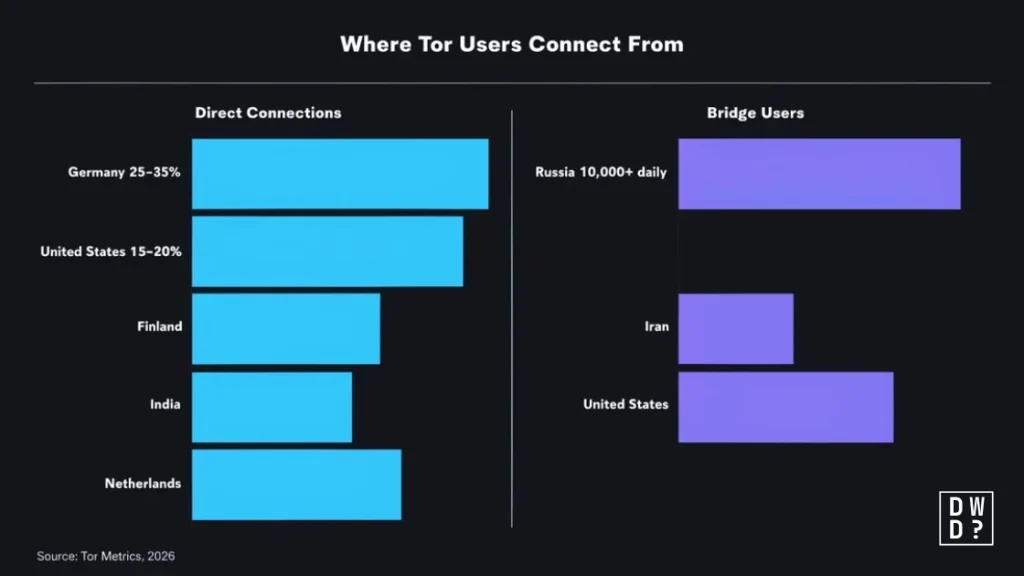
According to Tor Metrics, roughly 2 to 2.5 million people connect directly to the Tor network on a typical day. Germany has held the top spot for direct connections through most of the last few years, usually somewhere between a quarter and a third of the global total, with the US close behind. Russia leads on a different measure entirely, which is bridge users, meaning people connecting through unlisted relays to get around blocking, where it regularly accounts for over 10,000 daily users even though using anonymity tools is restricted there. We keep the fuller numbers updated in our dark web statistics for 2026.
Tor Browser Review: Pros And Cons
The Tor network is made for accessing the internet while resisting online tracking and browser fingerprinting, as well as preventing websites from identifying you based on your browser configuration. Some of these features are admired greatly by cybercriminals. The figure usually quoted here, that most of the network is criminal, traces back to a 2016 King’s College London study that classified 2,723 live .onion sites and found roughly 57% of them hosted illicit material. That was a sample of hidden services, not the network as a whole. Later research put the share closer to 38%, and only about 3% to 7% of Tor traffic touches onion services at all, with the rest exiting to ordinary websites. We pulled apart the same exaggeration in our piece on the dark web iceberg.
| Pros | Cons |
|---|---|
| Open-source software | Slows down the browsing process |
| Great security and privacy | Locating supportive dark websites can be challenging |
| Connects to the dark web easily | Security issues with malicious nodes |
| Straightforward user interface | |
| Lots of built-in features | |
| Integrated tools for privacy |
How Tor Browser Works
The Tor Browser serves as a hidden agent for your internet activity. It allows you to browse the web without revealing your identity. The browser protects your privacy by acting as an invisible shield when you are online, and allowing you access to non-indexed internet resources that are available on the dark web.
The browser is based on a technology called onion routing, which runs over a volunteer-operated relay network that allows users to browse the internet anonymously. The onion router operates by masking your location, IP address, and other identifying data from conventional websites, and from anyone monitoring your connection locally. What it cannot promise is protection from an adversary powerful enough to watch both ends of your connection at once.
The Tor Browser hides your identity when you send a request to a server; it uses the onion routing to hop the request between several Tor Relays rather than sending it straight to the server. It passes your traffic through three relays in total, an entry, a middle and an exit node. The end result looks a little like a VPN, since your traffic appears to come from somewhere else, but a VPN is a single hop and the provider can see both who you are and where you’re going. Tor splits that knowledge across three separate relays so no single one holds both halves.
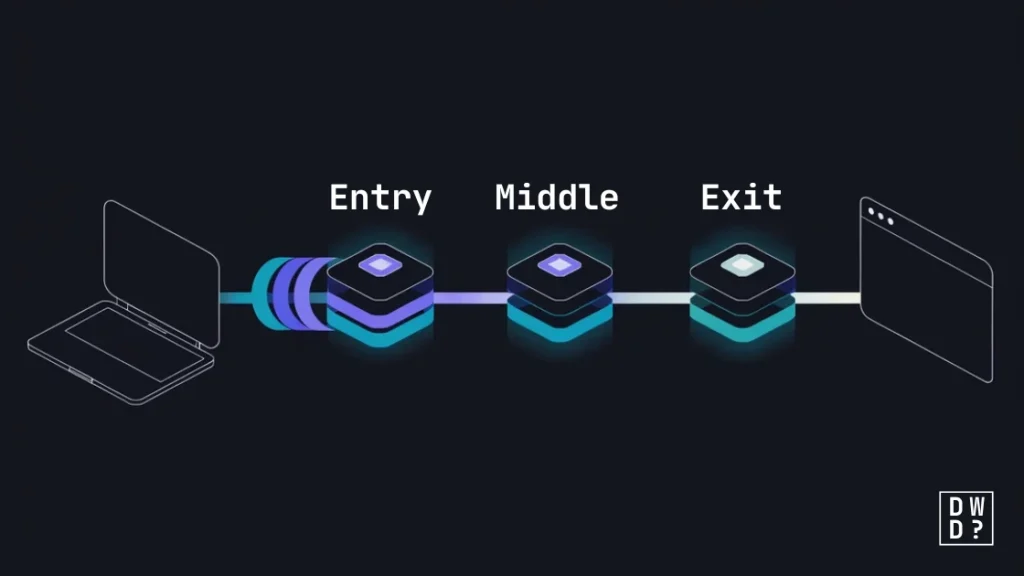
The first node (Entry Node) of the Tor network is a relay that is unaware of the content of the traffic or the final destination, and only knows the IP address of the user. It passes the content down to the Middle Node, which functions as the intermediary between the first node and the final node.
But the intermediate node is only aware of the beginning node’s and the exit node’s addresses (not aware of the user’s address). This helps in obscuring the path of the user. The content is then transmitted to the final node (Exit node), which decrypts and sends your traffic to the desired website or server. In the end, Tor browser transmits users’ traffic to its desired destination without saving their browsing history, search queries and cookies.
The Tor Browser makes it harder for advertisers or government snoopers to follow you online. Compared to standard browsers, Tor offers significantly greater privacy because it hides your IP address instead of just deleting your browsing history and cookies. Additionally, the Tor Browser protects you from websites that use fingerprinting to identify you.
Why Use The Tor Network?
There are three primary benefits to using the Tor network, these include:
- Your internet activities, including the names and URLs of the websites you visit, cannot be tracked by your internet service provider or by anyone monitoring your connection locally.
- Unless you specifically identify yourself, the operators of the websites and services you use, as well as anybody viewing them, will see a connection coming from the Tor network rather than your actual Internet (IP) address.
- By providing access to websites and online services that could be restricted or blocked in your area, Tor enables you to get around censorship.
What Are The Limitations of Tor Browsers?
- Tor browsing may be slower than using a standard browser because of the way it routes through several servers.
- Tor’s emphasis on security and anonymity may make it an unsuitable option for streaming or bandwidth-intensive activities.
- To improve your security, Tor Browser blocks or restricts a number of browser features and APIs that sites commonly use for fingerprinting.
- In order to guard against potential security flaws, Tor Browser may restrict some JavaScript functionalities.
- Although Tor improves privacy, users should nevertheless use caution when disclosing sensitive information because it is not infallible.
How To Download The Tor Browser
The safest and simplest (and the most recommended) way to download Tor Browser is via the official Tor Project website at https://www.torproject.org/download. HTTPS will be used to secure your connection to the website, making it far more difficult for someone to interfere.
But occasionally, you might not be able to visit the Tor Project website; for instance, your network might be blocking it. In the event that this occurs, you can use any of the alternatives provided by the Tor Project: Mirror or GetTor. They are both created as an alternative route to help users in censored regions get access to and download Tor. The official Tor Browser manual lists all of them in one place.
Bypassing Censorship With Mirrors
If your access to the official Tor website is blocked, you can bypass it by downloading Tor Browser via one of its official mirrors, such as EFF or La Cebolla. Only use this option if you are unable to download Tor from the main Tor Project website.
Bypassing Censorship With GetTor
You can also bypass the censorship by using GetTor, a service program hosted on Dropbox, Google Drive, GitHub, and other platforms. GetTor offers many ways to download Tor Browser. It is intended for those who live in areas with high levels of censorship, especially when www.torproject.org is restricted, or who just don’t want to reveal that they are downloading Tor Browser.
Download Tor browser Via Telegram
You can also download the Tor browser through the official Telegram channel. Go to Telegram and message @GetTor_Bot on Telegram. To begin:
- Click “Start” or type /start into the chat window.
- Choose your language.
Afterwards, there are two ways you can download the Tor Browser:
- By selecting your operating system after tapping “Send me Tor Browser.” In response, GetTor will provide a Tor Browser file that may be downloaded along with a signature that can be used to confirm the download.
- The second method is by downloading from one of the official mirrors. For this approach, tap on the “Send me other mirrors for Tor Browser.”
Download the Tor browser by email
Send an email to [email protected]. In the body of the mail, simply type windows, osx, linux, or android, depending on the operating system you are using and want to download Tor on. Those are the exact keywords GetTor recognises, so “macOS” won’t do it; use “osx” instead. For instance, send an email with the phrase “linux” to [email protected] to obtain links for downloading Tor Browser for the Linux operating system (OS). In response, GetTor will send you an email with links to download the Tor Browser package.
How To Use Tor Browser: Installation Walkthrough On Various Devices
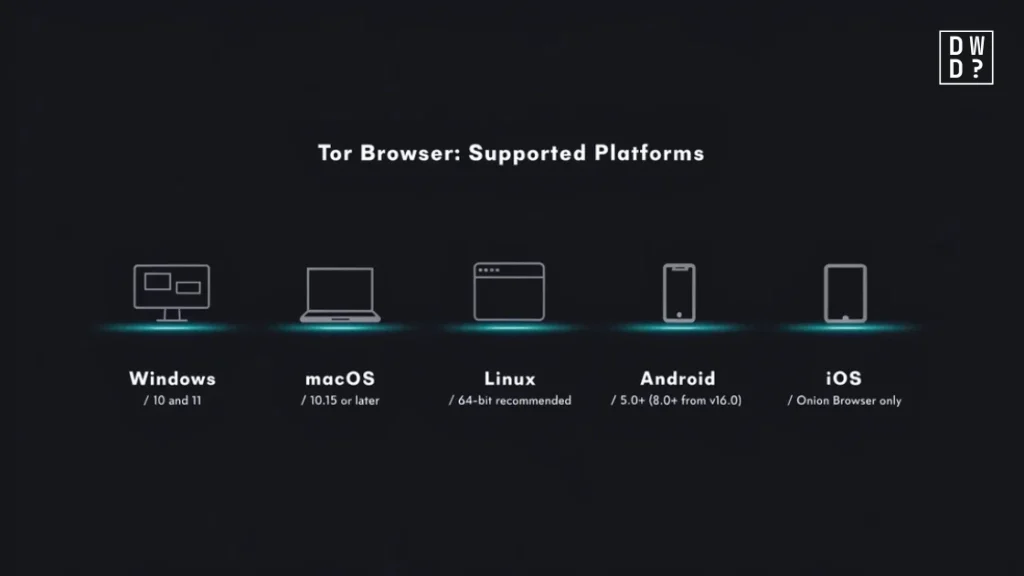
The Tor Browser is compatible with all major desktop operating systems, including Windows, Linux, macOS and even Android. It takes roughly five minutes to install. You do not necessarily need to be technically savvy before you can install browsers. A straightforward guide on how to install and use the software on various devices, and the Tor Project’s own installation page mirrors these steps if you want to cross-check. Just follow the step-by-step guide:
Tor Browser For Windows
The Tor browsers support Windows 10 and Windows 11, operating on 32- and 64-bit operating systems, although 32-bit x86 support is being dropped with Tor Browser 16.0 in mid-2026. Anything older than Windows 10 is already past the end of the line, as the Tor Project confirmed when legacy support ended in March 2026. The installation process involves the following:
- Go to the download page for the Tor Browser. Click here
- Get the Windows .exe file here.
- We suggest you check the signatures on the file to ensure the package has not been tampered with.
- Double-click the .exe file after the download is finished. Finish the installation wizard procedure.
The installer installs Tor Browser on your Desktop or Downloads folder by default. Also, the installer creates a shortcut on your desktop, unless you choose not to do so during installation. However, if you can’t locate it, try installing it again and take note of the directory path displayed in the installer; pick a location that you can quickly recall. Once it’s reinstalled, you will be able to locate the Tor Browser folder in the desired destination.
Tor Browser for macOS
The Tor browsers support macOS 10.15 and later versions. As of the writing of this article, the latest and most recent release is macOS 26.5, which was released in May 2026. The installation process involves the following:
- Go to the official page where you can download the Tor Browser. Click here
- Get the macOS .dmg file.
- Check the signature on the file to ensure the package has not been tampered with.
- Double-click the .dmg file after the download is finished. Finish the installation wizard.
Tor Browser For Linux
Tor is compatible with any contemporary Linux-based operating system. To ensure that the most recent Tor upgrades are accessible to Linux users, it is recommended that users install Tor Browser on a 64-bit Linux operating system. If you have any problems installing, follow the steps below:
- Go to the page where you can download the Tor Browser. Click here
- Get the Linux .tar.xz file.
- We suggest you check the signatures on the file to ensure the package has not been tampered with.
Afterwards, follow either the graphical or the command-line method to completely set up the browser:
| Graphical Method | Command-Line Method |
|---|---|
| When the download is complete, use an archive manager to extract the archive. | If the Graphical method doesn’t work, use the command-line technique. |
| Go to the directory for the Tor Browser. | After downloading, use the command tar -xf [TB archive] to extract the archive. |
| To open the browser, click the start-tor-browser.desktop file. | You can then launch Tor from inside the directory by running: ./start-tor-browser.desktop |
If the above command fails, run the command chmod +x start-tor-browser.desktop from within this directory to make the file executable. |
|
Run the command ./start-tor-browser.desktop --register-app to register Tor Browser as a desktop application. |
Tor Browser For Android
The Tor browser for Android is based on Mozilla Firefox, and is compatible with Android 5.0 and later. It is also available for x86_64, x86, ARM, and Aarch64 architectures. Worth noting for anyone on an older handset: the Tor Project has confirmed that Tor Browser 16.0, due mid-2026, raises the minimum to Android 8.0 and drops x86 entirely. To install Tor on Android, you can use the Google Play Store or F-Droid. Our dark web mobile apps guide covers the iOS and Android options side by side.
Downloading Tor using the Google Play Store is just as simple as downloading any other application available on the software. However, using F-Droid is different. Follow this step-by-step process to install the browser from F-Droid:
- Firstly, visit the F-Droid website to get the F-Droid app for your Android device.
- Launch the program after installing the F-Droid Android package file.
- Select “Settings” from the bottom navigation bar.
- Select “Repositories” from the settings menu.
- Click “+” to include a new repository.
- Include the official app repository for the Guardian Project.
- The list of apps from the Guardian Project App Repository may take some time for F-Droid to download.
- Confirm by tapping on “Add Repository”.
- Return to the main page of F-Droid.
- Click “Search” and type “Tor Browser for Android” into the search bar.
- Tap on “Tor Browser for Android” and then press “Install” to install the program.
Tor Browser For iOS
For iOS, there isn’t a Tor browser. We suggest the open-source, Tor-routing-based iOS app Onion Browser, which was created by a developer who works closely with the Tor Project. However, outside the EU, Apple requires browsers on iOS to utilize something called WebKit, which precludes Onion Browser from having the same privacy safeguards as Tor Browser.
Tor Browser For Chrome OS
Regretfully, there isn’t currently a Tor Browser version for Chrome OS. On Chrome OS, you might use the Tor Browser for Android. However, keep in mind that you will see mobile versions rather than desktop versions.
How To Verify Tor Browser’s Signature
A digital signature is a method that guarantees a package was created by its creators and hasn’t been altered. The significance of this and how to confirm that the Tor browser you download is the one we made and hasn’t been altered by an attacker are explained below.
Every file downloaded from Tor’s official website comes with a file called “signature” that has the same name as the package and the extension “.asc”. The extensions enable you to confirm that the file you’ve downloaded is precisely the one you wanted to receive.
To verify the signature of the package you downloaded, you must download both the installer file and the matching “.asc” signature file. Then, you can use a command that asks GnuPG to confirm the downloaded file.
After downloading and installing the Tor Browser exclusively from torproject.org. On first launch, click ‘Connect’ for standard use, or ‘Configure’ if you’re in a country that blocks Tor. Then configure the software to the desired experience while ensuring full security of its operation and your data.
Security Settings: How To Stay Safe When Using The Tor Browser
- Understand the Limitations: Tor anonymises your browsing, but it is slow. And don’t maximize the browser window, because window size is a fingerprinting signal, which is why Tor Browser ships with letterboxing to round off the dimensions it reports.
- Don’t log in with personal accounts or details. This defeats the anonymity that the network is designed to offer. Also, avoid using any distinctive surfing habits that could be used to identify you.
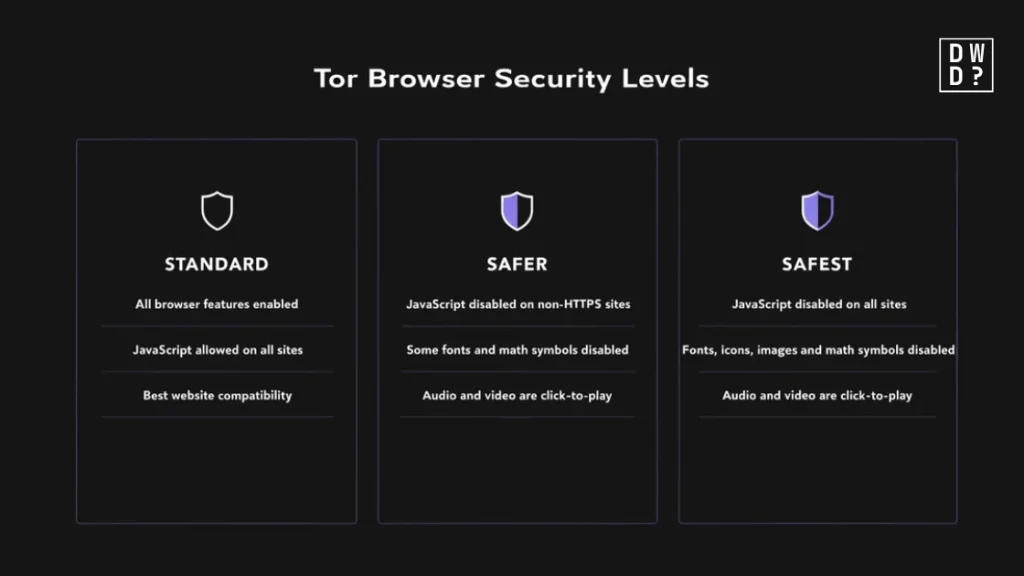
- Configure Security Level: Click the shield icon and set the security level. ‘Standard’ works for most browsers. ‘Safer’ disables JavaScript on non-HTTPS sites. ‘Safest’ disables JavaScript entirely and also blocks some fonts, icons and media (most secure).
- Use .onion Sites: Tor enables access to .onion sites that are only reachable through the Tor network. Legitimate uses include SecureDrop for whistleblowers and privacy-focused services.
- Practice Good OpSec: Don’t mix Tor browsing with regular browsing in the same session. Close Tor Browser completely when done. Never provide identifying information while using Tor. The EFF’s Surveillance Self-Defense walkthrough is a good second opinion on all of this.
Tor Browser Overview: Common Pitfalls
Some anonymity errors within the Browser are rarely technological exploits; rather, they are often user errors. Let’s walk you through some of the common pitfalls that ruin anonymity in detail.
Using Tor on Your Everyday Computer: Running Tor Browser next to your normal browser on your normal operating system is fine for most people, and it’s how the Tor Project expects the software to be used. It only turns into a real weakness once your threat model is serious, and at that point an amnesic system like Tails is the better answer.
Using Tor to Access Personal Accounts: This one is among the riskiest behaviours users engage in that can put them at severe risk. The primary purpose of using the Tor network is to ensure anonymity. If you use your personal details like emails, names, etc, to open an account, the purpose of the software no longer holds. Those same details are what end up on sale after a breach, as we covered in identity theft and the dark web.
Installing Tor Browser Extensions: This is one of the most underappreciated security flaws in the Tor Browser. It typically begins with good intentions; for convenience, to manage passwords, ad-blockers, personalised themes and tools for translation. However, Tor is meant to make users appear similar rather than distinct. Installing additional browser extensions breaks the uniformity and makes users trackable.
Modifying Security Level Without Knowing It: Lowering security settings without knowing what they govern is another common error. There’s a reason Tor provides several security levels. Ensure you understand what each security level implies and offers.
Opening and Downloading Files While Online: This is one of the riskiest errors that ruins Tor’s anonymity. Although it seems perfectly normal, opening downloaded documents while online can be quite risky. These files can contain links to external sources that can reveal your identity.
Mixing Anonymity and Non-Anonymity Activity: Not all activities are meant to be anonymous. The concept of the browsers is to make you anonymous. Hence, when it involves activities that shouldn’t be kept hidden, switch back to your normal server and device.
Alternatives: Comparison Table – Tor Browser, Brave’s Tor & Tails
| Feature | Tor Network | Brave (Tor Model) | Tails OS |
|---|---|---|---|
| Primary purpose | Anonymity and secure communication | Privacy-Focused. However, it has an optional Tor connectivity | Complete anonymity |
| Anonymity Level | High | Medium | High |
| Accessibility | Open source | Open source | Open source |
| Drawbacks | Slower than regular browsers | Fingerprinting issues | Slower than regular browsers |
One clarification on that last column: Tails isn’t a browser. It’s a live operating system you boot from a USB stick, it forgets everything at shutdown, and it ships Tor Browser inside it. So it’s an alternative to your whole setup rather than to your browser alone.
Conclusion
Tor Browser stands out as one of the safest networks for anonymity and privacy. Hence, for people who are serious about data privacy and online security, Tor is an excellent choice. It filters your internet traffic and keeps trackers and fingerprinting scripts off your trail by using various encryption layers. What it won’t do is stop malware, so that part is still on you. Additionally, it is lightweight and easy to use, though on mobile the constant relay connections will cost you more battery than a standard browser. Additionally, it enables you to get around the site bans that your home network has put in place, allowing you to freely surf any information.






[…] The dark web (or darknet, as it is sometimes called) is a tiny, hidden portion of the internet that can only be accessed using specialized browsers like Tor (The Onion Router) or I2P (Invisible Internet Project). These tools wrap your traffic in multiple layers of encryption and route it through several relays, so the site you visit can’t see your real IP address. For a full walkthrough, see our Tor Browser review. […]